The floor
Meeting rooms: doors, locks and capacity
Lock a meeting room from inside; people outside knock. Admins rename rooms, set video, capacity and agent rules, and repurpose rooms, like a restroom.
Updated
On this page
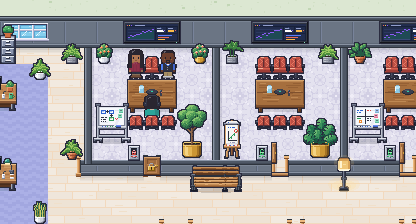
The office has private rooms along the meeting street: Meeting rooms 1 to 3, the Huddle and two focus booths, plus the Standup room in the west wing. Everyone inside a room shares one conversation, and the walls keep everyone else out.
The room’s label
Once two or more people are in a private room, their name tags give way to one label at the top of the room: the room’s icon (a lock while it’s locked) and how many are inside, like “Standup · 10”. In a video meeting, the participants pane lists everyone.
If you’re in the room’s conversation, the label says who is speaking (“Kas speaking”, or “Kas and Avindi” when two talk at once) and their own name tag shows above their head while they talk, so you can see where they sit. It stays for a second after they stop. People outside the room see the count only, never who is speaking.
Locking the door
Meeting rooms 1 to 3 have real doors. Anyone inside can lock the door:
- with the lock panel on the wall just inside, beside the door (hover it for “Lock the door”, click once), or
- with Lock the door in the dock.
While it’s locked, the door is a wall for everyone outside. The server enforces it with the same rule your browser uses, so nobody walks in by accident or on purpose. There’s no admin override, owners included. People inside can always walk out; coming back in means knocking.
The lock clears itself when the room empties. Locks aren’t stored or logged.
Knocking
At a locked door, the dock shows “Meeting room 1 is locked · Knock”. You can also click the door itself. People inside see “Name is knocking · Let in”, and anyone inside can let you in. That gives you a pass for 60 seconds or until you enter.
If you double-click inside a locked room from outside, you walk to the nearest free tile by its door.
Capacity and full rooms
Closed rooms (rooms with walls and a few doorways) can have a capacity. When a room is full, its entrance is closed to anyone outside, and the dock says “Room is full”. Lowering a capacity never moves anyone out. Open areas such as the desk areas, the lounge and the meeting-street corridor can’t have one.
Room settings
Owners and admins change a room from Map view: zoom all the way out, then click the room’s label. The room card shows:
| Setting | What it does |
|---|---|
| Name | What everyone sees, up to 40 characters |
| Video | Off, Available or Video meeting (video meetings) |
| Lockable | Only for rooms with a door. Turned off, the lock and any knocks clear at once and the door stays open |
| Capacity | Empty means no limit. Closed rooms only |
| Agents | Can walk in, or Must be let in by someone inside |
| Used as | A different purpose for the room (below). Only rooms with a preset that fits |
Save appears once something changed, and Reset to default once the room differs from the original. Every change takes effect for everyone at once and is written to the audit log. Members see a one-line summary instead, like “Video meeting · Lockable · 6 seats” or “Restroom, was a focus booth · No video”.
Giving a room another purpose
A workspace can use a room for something else. The room’s walls, door and place stay the same; its furniture and props change to a set that fits inside it, and its seats come with that set. Each workspace chooses for itself, so one can have a restroom where another keeps its focus booth.
| Purpose | What’s in it | Rooms |
|---|---|---|
| Restroom | Toilet stalls with doors, sinks with a mirror, a plant. No seats, no camera, and it can’t be locked: the floor lock is for meetings | Focus booths A and B, the Huddle |
| Phone booths | A row of phone nooks between felt panels, each with a chair | Focus booths A and B, the Huddle |
| Quiet room | Armchairs, beanbags, a lamp and plants. No camera unless you turn it on | Focus booths, the Huddle, Meeting rooms 1 to 3 |
| Storage | Shelving, cabinets and boxes. No seats | Focus booths, the Huddle, Meeting rooms 1 to 3 |
| Kitchenette | A counter with a coffee machine, a fridge, a water cooler and a small table | Focus booths A and B, the Huddle |
A room given a purpose takes its name (“Restroom”) unless you renamed it, and its video default. A meeting room used as a quiet room or for storage keeps its door and lock. Anyone standing where new furniture goes moves to the nearest free spot. Rooms with claimed desks can’t be repurposed until their desks are released.
Choose Used as on the room card, or ask your AI tool through MCP: “Turn Focus booth B into a restroom” calls update_room with purpose: "restroom". To undo it, pick the room’s original purpose, or ask for “the original floor”: reset_floor puts every room’s furniture back in one go (and, with all, every room’s settings too).
Changing the layout
Walls, doors and rooms are the same for every workspace today; only what’s inside a room can change (above). A floor editor isn’t built yet. Coming: Floor editor with drafts, on the roadmap